 Skip to content





If you’re wondering, “What is Action Mode on iPhone?” it’s an advanced video stabilization feature introduced with iPhone 14 that uses sensor-shift technology and intelligent cropping to deliver smooth, professional-quality footage during movement. For business owners, IT professionals, and consultants, this capability transforms the iPhone into a powerful documentation tool without requiring expensive camera equipment or gimbals. Whether you’re capturing facility walkthroughs, documenting equipment installations, or creating client presentations, understanding this feature helps you leverage technology you already own.
This guide explains how the stabilization technology works, when to activate it for business scenarios, and how to troubleshoot common issues. You’ll learn practical applications that improve client communication, streamline documentation workflows, and enhance your professional video content — all using the device in your pocket.
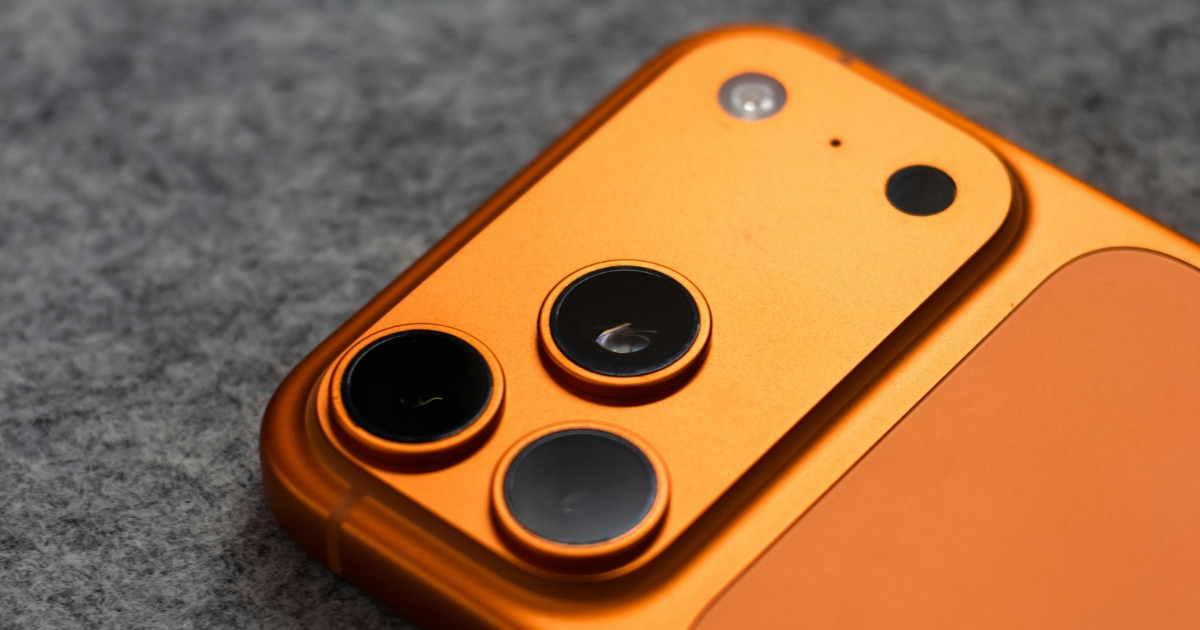
How Action Mode Video Stabilization Works and What Makes It Different
The technology behind Action Mode combines sensor-shift optical image stabilization with intelligent digital cropping. The Action Mode video stabilization system relies on a combination of hardware and software to eliminate shake and jitter from handheld footage. When you enable the feature, the camera crops a portion from the edges of your frame — reducing the field of view but creating a buffer zone for stabilization adjustments. The system records at 2.8K resolution rather than full 4K, a compromise that balances file size with processing demands.
Standard recording captures a wider field of view at full 4K resolution and performs better in low-light conditions, making it ideal for stationary shots or maximum detail needs. The stabilized option excels during movement — walking through a server room, climbing stairs during a site inspection, or filming while riding in a vehicle. The choice depends on your specific documentation needs and shooting conditions.
Action Mode vs Standard Video Recording: Technical Trade-Offs
| Recording Mode | Resolution | Best Use Case |
|---|---|---|
| Action Mode | 2.8K (cropped) | Moving shots, walkthroughs, and handheld documentation |
| Standard 4K | 4K (full frame) | Stationary shots, tripod work, maximum detail capture |
| Cinematic Mode | 1080p or 4K | Interviews, presentations with depth-of-field effects |
The feature automatically disables in certain conditions to prevent poor results. Insufficient lighting triggers an automatic switch to standard recording because the cropping and processing reduce light-gathering capability. Frame rates above 60fps also disable the stabilization, as do zoom levels beyond 1x and certain video formats like ProRes. Understanding these limitations helps you plan shoots and adjust settings before critical documentation sessions.
How to Turn On Action Mode iPhone and Optimize Settings for Business Use
Activating the stabilization feature takes seconds once you know where to look. Open the Camera app, swipe to Video mode, then tap the Action Mode icon — it resembles a running figure and appears in the top toolbar. The icon highlights in yellow when active, and you’ll notice the viewfinder crops slightly as the system reserves edge pixels for stabilization processing. This simple process for turning on Action Mode on iPhone requires no special setup beyond knowing the button location.
Optimizing Settings for Different Business Scenarios
Once you know what Action Mode is on an iPhone and how to activate it, the best settings depend on your shooting environment and intended use. The best settings for Action Mode balance stabilization performance with file size — for most business documentation, 1080p at 30fps delivers professional results without overwhelming your storage capacity. Indoor documentation requires more attention to lighting; position yourself to maximize available light sources and avoid shooting directly into windows or bright fixtures.
- Ensure adequate lighting before starting critical recordings — the feature performs poorly in dim environments and may disable automatically, interrupting your documentation workflow.
- Lock exposure and focus by tapping and holding on your primary subject to prevent the camera from hunting during movement, which can create distracting brightness shifts in professional videos.
- Test your setup with a brief recording before starting important client documentation to verify that settings, lighting, and stabilization performance meet your quality standards.
If you’re troubleshooting iPhone Action Mode not working as expected, check for incompatible settings combinations and environmental factors. If the button remains grayed out despite good lighting, verify you’re not using Cinematic mode, ProRes format, or zoom beyond 1x — all of which conflict with stabilization. Frame rates above 60fps also disable the feature. For IT professionals documenting server rooms or network closets, the confined spaces and fluorescent lighting often trigger automatic disabling; in these cases, standard recording with a brief pause to stabilize yourself before each shot produces better results than fighting the system.
When to Use Action Mode iPhone for Business Documentation and Client Work
Facility walkthroughs represent the ideal application for this stabilization technology. IT consultants conducting site surveys can capture smooth footage while moving through office spaces, data centers, or retail locations, providing clients with professional-quality documentation of existing infrastructure. The stabilized output eliminates the shaky, amateur appearance of handheld phone video, making your deliverables look polished and intentional. Understanding this feature helps you recognize these ideal scenarios.
Equipment inspections and installation documentation also leverage the feature effectively. When you need to film HVAC systems, server racks, or telecommunications equipment in tight spaces where tripods won’t fit, the handheld stabilization maintains professional quality while you navigate around obstacles.
When Standard Recording Is the Better Choice
However, recognizing when standard recording serves you better is equally important. Low-light environments like dimly lit basements, parking garages, or evening exterior shots produce poor stabilized results — does Action Mode work in low light is a common question, and the answer is no; it typically auto-disables or delivers grainy, compromised footage. Stationary shots, where you can brace the phone or use a tripod, don’t benefit from the feature and lose resolution unnecessarily. Maximum-detail capture for close-up documentation of serial numbers, cable labels, or configuration screens requires full 4K resolution, making standard mode the better choice.
| Scenario | Recommended Mode | Reason |
|---|---|---|
| Office walkthrough in daylight | Action Mode | Movement stabilization is critical, and good lighting is available |
| Server room documentation | Standard 4K | Low light, stationary shots, detail priority |
| Outdoor site survey | Action Mode | Excellent lighting, walking movement, and professional appearance are needed |
| Equipment label close-ups | Standard 4K | Maximum resolution needed, phone can be braced |
Real-world examples from IT professionals illustrate practical applications. A managed services provider documenting a client’s network infrastructure before a migration films a continuous walkthrough of the existing setup, narrating cable runs and equipment locations while moving through the building. These scenarios demonstrate how iPhone 14 Action Mode features transform routine documentation into professional deliverables that enhance client communication and project records.
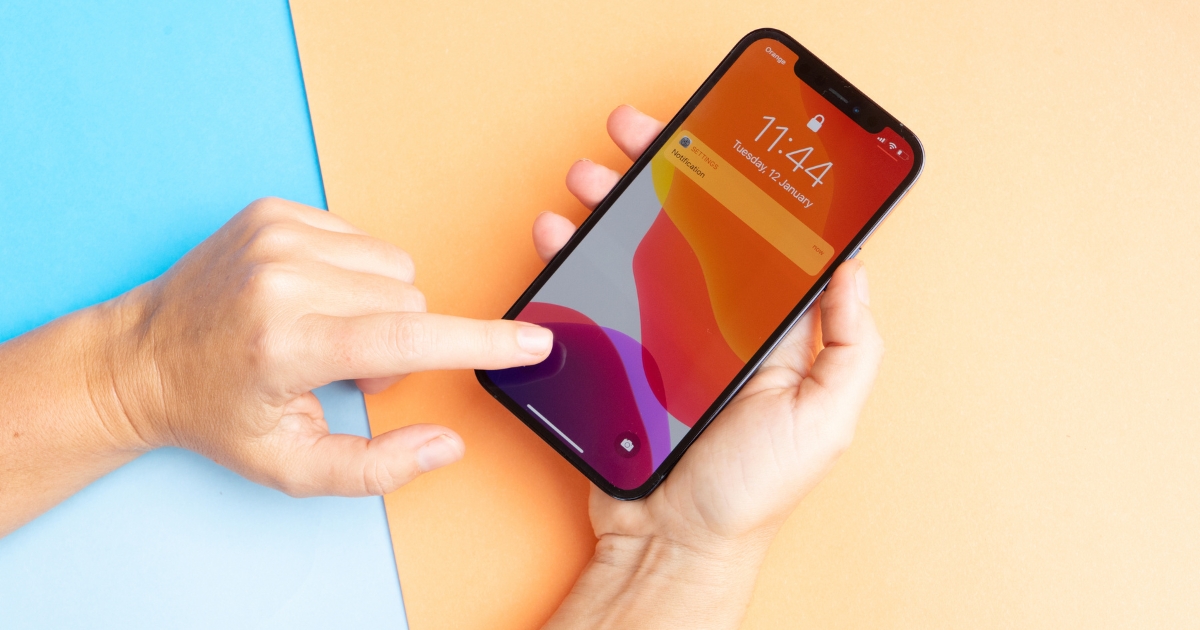
Put Your Technology in Action with Expert Guidance at Coastal IT Services
Understanding what Action Mode on iPhone is represents just one example of how existing business technology contains untapped capabilities that improve efficiency and client service. Many organizations invest in premium devices without fully leveraging the features that justify the expense. Coastal IT Services helps businesses develop mobile device strategies that maximize the return on their technology investments. From optimizing iPhone settings for field documentation to implementing mobile device management policies, the company standardizes best practices across teams. Whether you need guidance on which devices best serve your documentation needs, training for staff on professional video capture techniques, or comprehensive IT consulting that aligns technology choices with business objectives, expert support ensures you extract full value from every technology dollar. Contact Coastal IT Services today to discuss how strategic IT guidance transforms the tools you already own into competitive advantages that enhance client relationships and operational efficiency.
FAQs
These common questions address technical requirements, quality trade-offs, and troubleshooting steps for business users implementing this stabilization feature in their documentation workflows.
1. What iPhone models support Action Mode?
In terms of device compatibility, the stabilization feature requires iPhone 14, iPhone 14 Plus, iPhone 14 Pro, iPhone 14 Pro Max, or any iPhone 15 model. Older devices, including iPhone 13 and earlier, lack the necessary hardware — specifically the advanced gyroscope and accelerometer sensors required for real-time stabilization processing.
2. Does Action Mode reduce video quality compared to standard recording?
Yes, the feature crops your frame and records at 2.8K resolution instead of full 4K to enable stabilization processing. The reduced field of view means you capture less of the scene edges, and the lower resolution provides less detail for zooming during editing.
3. Why does my Action Mode button appear grayed out?
When troubleshooting stabilization issues, the system disables Action Mode when lighting falls below minimum thresholds, when you’ve selected incompatible settings like ProRes format or Cinematic mode, when zoomed beyond 1x magnification, or when frame rates exceed 60fps. Check your lighting conditions first — moving to a brighter area or adding supplemental light often resolves the issue. If lighting is adequate, review your video settings and disable any special formats or high frame rates that conflict with stabilization requirements.
4. Can Action Mode footage be used for professional client presentations?
Absolutely — the stabilized output meets professional standards for business documentation, client presentations, and marketing content when shooting conditions are appropriate. The smooth, shake-free footage appears far more polished than standard handheld phone video, and rivals results from dedicated stabilization equipment. However, for controlled indoor shoots, interviews, or situations requiring maximum resolution, standard recording mode may better serve your needs.
5. How much storage space does Action Mode video consume?
Despite the lower 2.8K resolution, stabilized footage uses approximately the same storage as standard 4K video due to additional processing data required for real-time stabilization. Expect 300-400MB per minute of recording. For extended documentation sessions, verify you have adequate free storage before starting.


