 Skip to content





Desktop computers rarely ship with built-in wireless connectivity, leaving users searching for ways to connect to WiFi networks without running Ethernet cables across rooms. A wifi dongle for pc solves this problem by adding wireless capability through a USB port, but not all adapters deliver the performance or reliability that IT professionals expect. Choosing the wrong device can lead to dropped connections, slow speeds, and frustrating troubleshooting sessions that waste time and money.
This guide explains what makes a dependable wireless adapter for desktop systems, how to avoid common installation pitfalls, and when professional network assessment delivers better long-term value than repeated hardware purchases. Whether you’re upgrading a home office workstation or managing connectivity for a small business, understanding these technical considerations helps you make informed decisions that actually solve connectivity problems.
Why Most PC Users Need a WiFi Dongle (And Some Don’t)
Renters who cannot modify walls, users who relocate desks frequently, and small businesses adding remote workstations benefit from USB wireless solutions. Choosing the right wifi dongle for pc depends on understanding these use cases and matching hardware to your actual connectivity requirements.
However, some situations call for different solutions. Gaming PCs and workstations handling large file transfers perform better with wired Ethernet’s lower latency. Before purchasing a wifi dongle for pc, assess whether your workload truly requires wireless flexibility or whether wired connectivity better serves your performance needs. Offices with multiple desktops typically benefit from professional network planning rather than individual adapters.
What Makes a Reliable Wireless Adapter for Desktop Computers
The best wireless network adapter for Windows systems balances technical specifications with real-world compatibility. WiFi 6 (802.11ax) represents the current standard, offering improved performance in environments with many connected devices, but WiFi 5 (802.11ac) adapters still deliver excellent speeds for most home and small office applications. When evaluating any wifi receiver for desktop computer use, focus on specifications that match your router’s capabilities rather than marketing claims about theoretical maximum speeds.
A dual-band USB Wi-Fi adapter supports both 2.4 GHz and 5 GHz frequencies. The 2.4 GHz band travels farther but suffers from congestion, while 5 GHz offers faster speeds at shorter range. Quality adapters automatically select the optimal band.
| Specification | What It Means | Why It Matters |
|---|---|---|
| USB 3.0 Interface | Blue USB port with higher data transfer rates | Prevents USB bus from bottlenecking WiFi speeds above 400 Mbps |
| MU-MIMO Support | Multi-user multiple input/output technology | Improves performance when router serves multiple devices simultaneously |
| WPA3 Encryption | Latest wireless security protocol | Essential for business networks and sensitive data transmission |
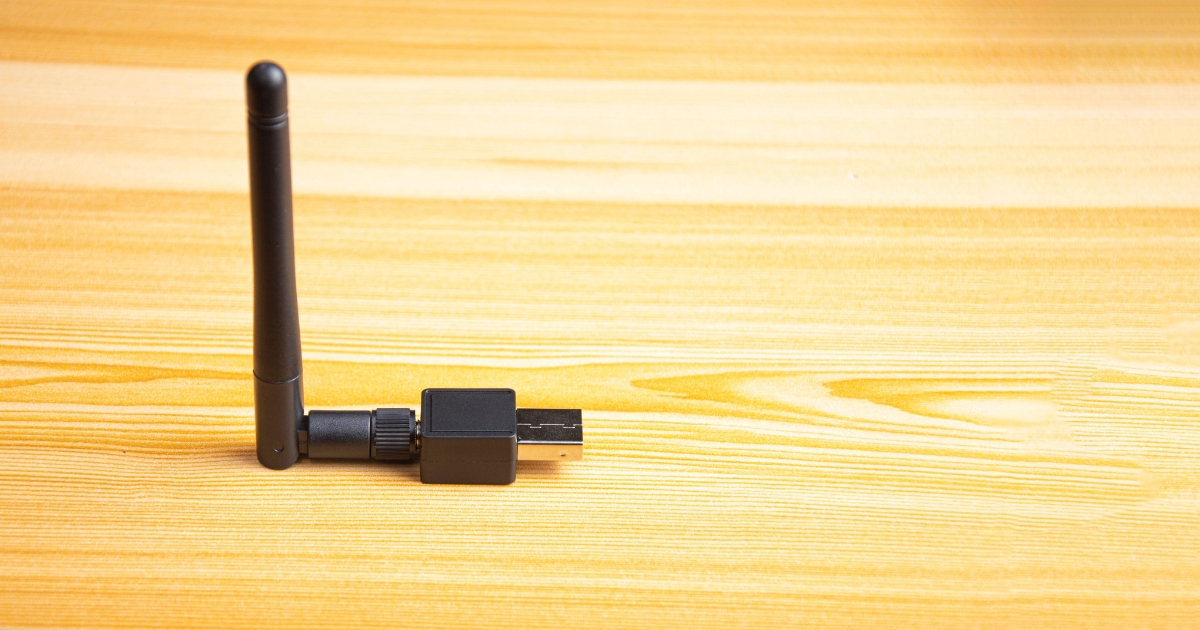
| External Antenna | Visible antenna that can be repositioned | Allows signal optimization without moving the entire PC |
- Verify the adapter supports your Windows version with drivers signed by Microsoft, avoiding installation failures and security warnings.
- Choose devices from manufacturers that release regular driver updates addressing new Windows builds and security patches.
- Prioritize adapters with detachable USB cables or extension cradles that let you position the wifi dongle for pc away from metal cases that block signals.
- Look for models with LED indicators showing connection status and activity, simplifying troubleshooting when connectivity issues arise.
- Consider total cost including potential support calls—budget adapters that fail frequently cost more than quality hardware purchased once.
Troubleshooting When Your USB WiFi Adapter Isn’t Working
Driver conflicts represent the most common reason a USB WiFi adapter not working appears in Device Manager with a yellow exclamation mark. Windows attempts automatic driver installation when you plug in a wifi dongle for pc, but this process fails if the adapter uses a chipset Windows doesn’t recognize or if existing network drivers conflict with the new device.
Download drivers from the manufacturer’s website. In Device Manager, right-click the unknown device, select Update Driver, and browse to the downloaded folder.
Manual Installation When Windows Doesn’t Detect Your Adapter
When automatic detection fails, the question of how to install Wi-Fi adapter on pc has a specific answer: follow the manufacturer’s installation sequence. Unplug the adapter, install the driver software first, then connect the hardware only after the installer prompts you. If you’ve already connected the adapter before installing drivers, uninstall all network devices in Device Manager, restart the PC, then follow the correct installation sequence.
USB port power delivery issues cause intermittent connectivity that appears as random disconnections or failure to maintain stable connections. Whether you’re setting up a wireless adapter for desktop use for the first time or troubleshooting an existing installation, following the manufacturer’s driver sequence prevents most common issues. Desktop motherboards vary in how much power they supply to individual USB ports, and some wireless adapters draw more current than USB 2.0 specifications provide. Connecting power-hungry adapters to front panel USB ports—which often receive less power than rear motherboard ports—exacerbates this problem. Try different USB ports, preferably USB 3.0 ports directly on the motherboard, before concluding the adapter itself is defective.
Common Wireless Internet Adapter Troubleshooting Steps
Physical positioning affects signal strength more than most users realize. Metal PC cases create Faraday cage effects that attenuate wireless signals, especially when the adapter sits behind the case relative to your router. USB extension cables or cradles that position your wifi dongle for pc on top of or beside the desk rather than behind the PC often double effective signal strength.
| Symptom | Likely Cause | Solution |
|---|---|---|
| Adapter detected but no networks visible | Wireless service disabled in Windows | Enable WiFi in network settings or check airplane mode status |
| Connection drops every few minutes | Power management turning off adapter to save energy | Disable “allow computer to turn off this device” in device properties |
| Slow speeds despite strong signal | Adapter connecting to 2.4 GHz instead of 5 GHz band | Manually select 5 GHz network or configure band preference in adapter settings |
| Limited connectivity or no internet access | IP address conflict or DHCP failure | Release and renew IP address using ipconfig commands in command prompt |
Network congestion in dense residential or office environments degrades performance even with quality hardware. When many neighboring networks operate on the same wireless channel, no adapter can overcome the interference. Users replace functioning adapters when network optimization would solve the problem.
Connecting You to Reliable Solutions at Coastal IT Services
While selecting the right hardware matters, proper network configuration often determines whether your wireless setup delivers consistent performance or creates ongoing frustration. Coastal IT Services evaluates your complete connectivity requirements, identifying whether a simple adapter solves your needs or whether network infrastructure improvements prevent recurring problems. Our technicians handle complete setup, from driver installation to security configuration, ensuring reliable connectivity from day one. When connectivity issues disrupt your productivity, professional support resolves problems faster than trial-and-error hardware swaps. Contact us to discuss how we can design and implement wireless solutions that actually work for your home office or business.
FAQs
These questions address the most common concerns IT professionals hear from desktop users evaluating wireless connectivity options.
1. Do I need a WiFi dongle for my computer, or does my PC already have wireless capability?
Most desktop computers lack built-in wireless adapters unless specifically purchased with that feature. Check your system tray for a WiFi icon or look in Device Manager under Network Adapters for entries containing “wireless” or “WiFi”—if you see only Ethernet adapters listed, your system requires a dongle or internal card to connect wirelessly. Laptops almost always include wireless capability, while desktops typically require added hardware.
2. How do I install a WiFi adapter on my PC if Windows doesn’t automatically recognize it?
Download the latest driver from the manufacturer’s website, unplug the adapter, run the driver installer, then connect the adapter only when prompted by the installation wizard. This sequence prevents Windows from applying generic drivers that may not support all adapter features. If the adapter still doesn’t work, check Device Manager for error codes that indicate specific driver or hardware conflicts requiring additional troubleshooting.
3. What’s the difference between a single band and dual band USB WiFi adapter for desktop use?
Single band adapters connect only to 2.4GHz networks, which offer longer range but slower speeds and more interference from neighboring networks and household devices. Dual band models access both 2.4GHz and 5GHz frequencies, automatically selecting the optimal band based on signal strength and congestion. The 5GHz band provides faster speeds with less interference but requires closer proximity to your router, making dual-band adapters more versatile for varied environments.
4. Why does my wireless internet adapter keep disconnecting or showing limited connectivity?
Frequent disconnections typically result from power management settings that turn off the adapter to save energy, insufficient USB port power, or driver conflicts with Windows updates. Disable power saving for the adapter in Device Manager properties, try different USB ports (preferably USB 3.0 ports on the motherboard), and verify you’re running the latest driver from the manufacturer. Persistent problems may indicate hardware failure or deeper network configuration issues requiring professional diagnosis.
5. Can a better WiFi receiver for my desktop computer actually improve my internet speed?
Upgrading from an older adapter to a modern WiFi 6 device can significantly improve speeds if your router supports the newer standard and your previous adapter was the bottleneck. However, your internet speed is ultimately limited by your service plan—a better adapter cannot exceed the maximum speed your ISP delivers. Adapters primarily improve local network performance, reduce latency, and provide more stable connections in challenging wireless environments rather than increasing your subscribed internet bandwidth.


