 Skip to content





Screen recording on iPhone has become an essential tool for business communication, IT support documentation, and employee training. Whether you’re capturing a software bug for a help desk ticket, creating a walkthrough for remote team members, or demonstrating a mobile app feature to a client, knowing how to screen record on iPhone streamlines professional workflows and reduces back-and-forth communication. Many business users encounter obstacles when setting up this feature for the first time or troubleshooting issues that prevent recordings from working as expected.
This guide covers the process from initial setup through advanced audio options, troubleshooting common issues, and applying this feature in business and IT support contexts. By the end, you’ll have the knowledge to leverage this built-in iOS feature for professional documentation, remote troubleshooting, and client communication.
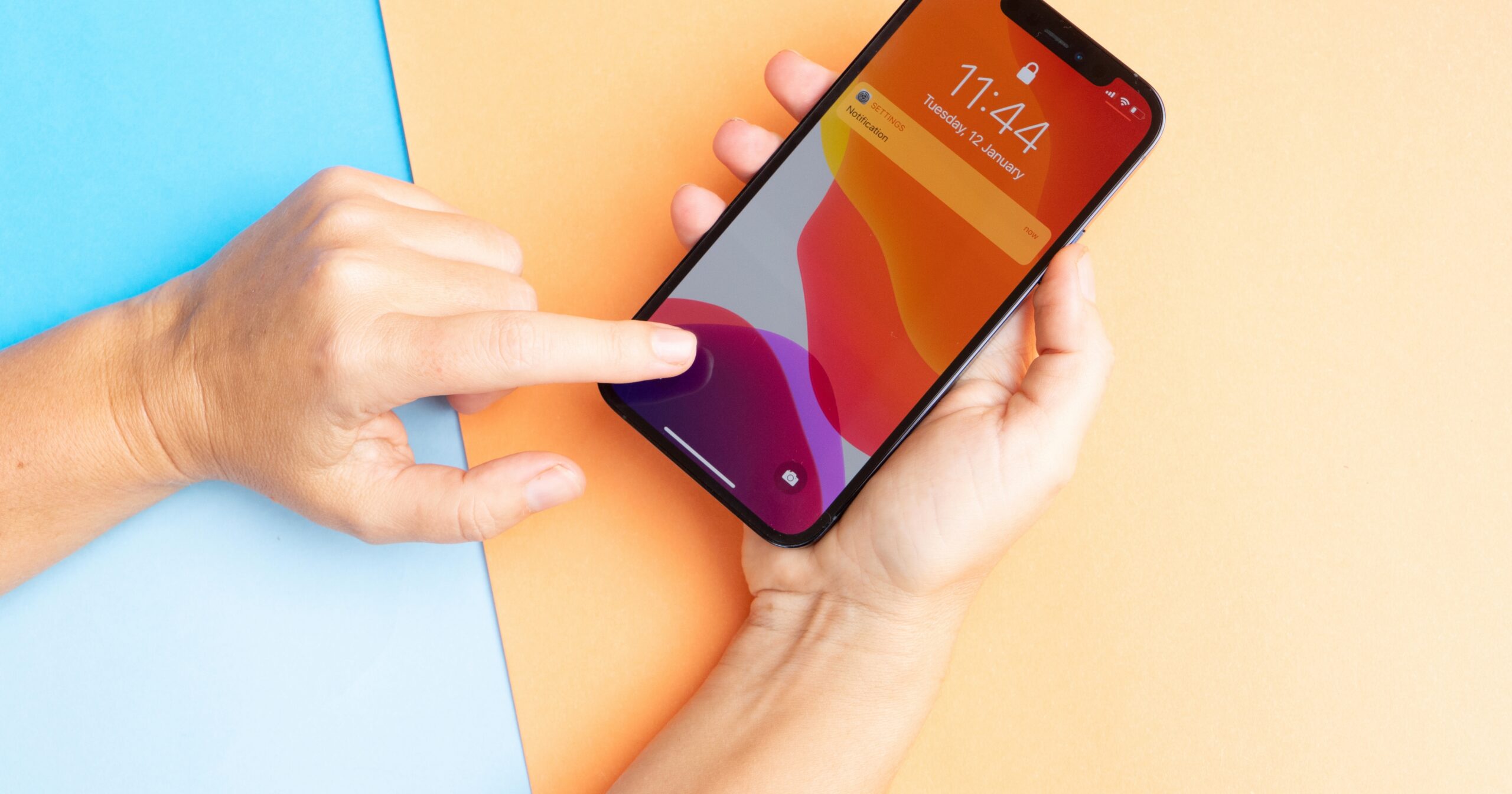
Setting Up Screen Recording on Your iPhone
Before you can capture your iPhone screen, you need to enable the feature through Control Center settings. Open the Settings app on your iPhone and scroll down to Control Center. Tap this option to access the customization menu where you can add or remove shortcuts.
In the Control Center settings, scroll through the list of available controls until you find Screen Recording. You’ll see it listed under “More Controls” rather than “Included Controls.” Tap the green plus icon next to Screen Recording to move it into your active Control Center lineup. After adding it, open Control Center (swipe down from the upper-right on Face ID models, or up from the bottom on Home button devices) to find the circular recording icon with a solid dot in the center. To enable screen recording on iPhone, you must add the iPhone Control Center screen record control to your device’s quick-access menu through the Settings app.
Where Is the Screen Recording Button on iPhone?
After adding the control, test that screen recording works properly before you need it for business purposes. Open Control Center and tap the screen recording button—you should see a three-second countdown followed by a red status indicator. Record a few seconds of your home screen, then stop the recording by tapping the red status bar and selecting Stop. Check your Photos app to confirm the video saved correctly and plays back without issues. Once you complete these steps, you’ll know exactly how to capture your screen whenever needed. Once you understand how to add screen recording to iPhone, the setup takes less than a minute.
Recording Your iPhone Screen with Audio and Advanced Options
Once you’ve added screen recording to Control Center, capturing video with audio narration requires just a few taps. The process of screen recording on iPhone through Control Center takes only seconds to master. A three-second countdown appears, then the status bar turns red to indicate recording is in progress. This straightforward process makes learning how to screen record on iPhone accessible even for users new to iOS features.
- Screen recordings capture everything visible on your display, including notifications and incoming calls—plan accordingly
- Videos save in .MOV format at your device’s native resolution, typically 1080p or higher on recent models
- Recording continues even when you lock your screen or switch apps, stopping only when you manually end it
- The red status bar remains visible throughout recording as a reminder that capture is active
To record iPhone screen with audio, you need to enable the microphone before starting. Press and hold the screen recording button in Control Center instead of tapping it once. A menu appears with a Microphone Audio option at the bottom. Tap the microphone icon to toggle it on—it turns red when active. This captures your voice narration along with the visual recording—essential for training videos, IT support documentation, or client demonstrations.
Troubleshooting Common iPhone Screen Recording Issues
Even after learning the setup process, users occasionally encounter technical obstacles that prevent recordings from starting or saving properly. Common issues trace back to storage limitations, software glitches, or MDM restrictions. If the recording button appears in Control Center but tapping it produces no countdown or red status indicator, restart your iPhone first—this resolves temporary software glitches that prevent the feature from launching. If the problem persists, check your available storage in Settings > General > iPhone Storage. Screen recordings require sufficient free space to save video files, and iOS prevents recording when storage is critically low.
| Problem | Common Cause | Solution |
|---|---|---|
| Button missing from Control Center | Not added to included controls | Go to Settings > Control Center and tap the plus icon next to Screen Recording. |
| Recording fails to start | Low storage or software glitch | Free up storage space and restart device |
| No audio in saved recording | Microphone not enabled before recording | Press and hold the recording button, then tap the microphone icon to turn it red |
| Recording grayed out or disabled | MDM restrictions on enterprise device | Contact IT department—company policy may restrict this feature |
When you discover screen recording missing from Control Center even after following the setup steps, the problem typically stems from one of three causes: the control was accidentally removed from your included controls list, iOS needs a software update to restore full Control Center functionality, or your device has enterprise restrictions that hide the feature entirely.
Enterprise Device Restrictions and MDM Policies
For business users on company-managed devices, the most common reason to troubleshoot iPhone screen recording issues involves Mobile Device Management restrictions. If your screen recording button is grayed out or missing despite following all setup steps, your device likely has an MDM policy blocking this feature. Contact your IT support team to discuss whether exceptions can be made for legitimate business use cases like creating training materials or documenting technical issues for help desk tickets.
Business Use Cases for iPhone Screen Recording
Screen recording capabilities help teams communicate more effectively, resolve technical issues faster, and create valuable training resources.
| Business Function | Screen Recording Application |
|---|---|
| IT Support & Help Desk | Users record bugs and issues with full context; support staff create solution walkthroughs |
| Employee Training | Trainers produce step-by-step tutorials for software, apps, and mobile workflows |
| Sales & Client Services | Teams demonstrate product features, create personalized proposals, and show portal navigation |
| Quality Assurance | QA testers document software defects with visual evidence and reproduction steps |
| Documentation & Knowledge Management | Organizations build video libraries of procedures, reducing repetitive explanation requests |
Recording Success Starts with the Right IT Partner at Coastal IT Services
Mastering this built-in iOS feature is just one piece of effective business technology—professional IT support makes the difference between frustration and productivity. When technical challenges arise—from MDM restrictions to persistent audio problems—having experienced IT support makes all the difference. Coastal IT Services specializes in helping businesses optimize their mobile device management, troubleshoot iOS issues, and implement secure workflows that leverage built-in iPhone capabilities. Our team understands the balance between enabling productivity tools and maintaining enterprise security. If your organization needs guidance on mobile device policies, troubleshooting persistent iPhone issues, or training employees on effective use of iOS features, contact us today to learn how our managed IT services support your business technology needs.
FAQs
Here are answers to the most common questions about iPhone screen recording functionality, troubleshooting, and business applications.
1. Why is screen recording missing from my Control Center?
The screen recording button doesn’t appear in Control Center by default on most iOS configurations. If you’ve added it but still don’t see it, your device may have MDM restrictions applied by your employer that disable this feature for security or compliance reasons.
2. Can I record my iPhone screen with audio from apps?
Yes, internal app audio records automatically when apps play sound during your screen recording session. This includes music from streaming apps, video audio, game sounds, and notification tones. To add your own voice narration, press and hold the screen recording button in Control Center before starting, then tap the microphone icon to enable external audio capture.
3. How to fix iPhone screen recording not working on my device?
Start by restarting your device to clear temporary software glitches. Check that you have adequate storage space in Settings > General > iPhone Storage and verify the screen recording button is properly added to Control Center. If the button appears disabled or the feature is completely missing despite correct setup, your device likely has Mobile Device Management restrictions—contact your IT department to discuss whether the feature can be enabled for your business role. Once you understand how to screen record on iPhone, these issues rarely recur after the initial setup.
4. Where do screen recordings save on iPhone?
Screen recordings save automatically to the Photos app immediately after you stop recording. You’ll find them in the Recents album and under the Videos category in your photo library. The files are saved in .MOV format and can be edited, shared, or deleted like any other video in your Photos app.
5. Can my company disable screen recording on work iPhones?
Yes, organizations can disable screen recording through Mobile Device Management profiles to protect sensitive corporate data and comply with industry regulations. IT administrators can restrict this feature entirely or limit it to specific user groups based on business needs and security policies. If your work iPhone has screen recording disabled, discuss your use case with your IT support team—they may be able to grant exceptions for legitimate business purposes like creating training materials or documenting technical issues for help desk tickets.


