Skip to content




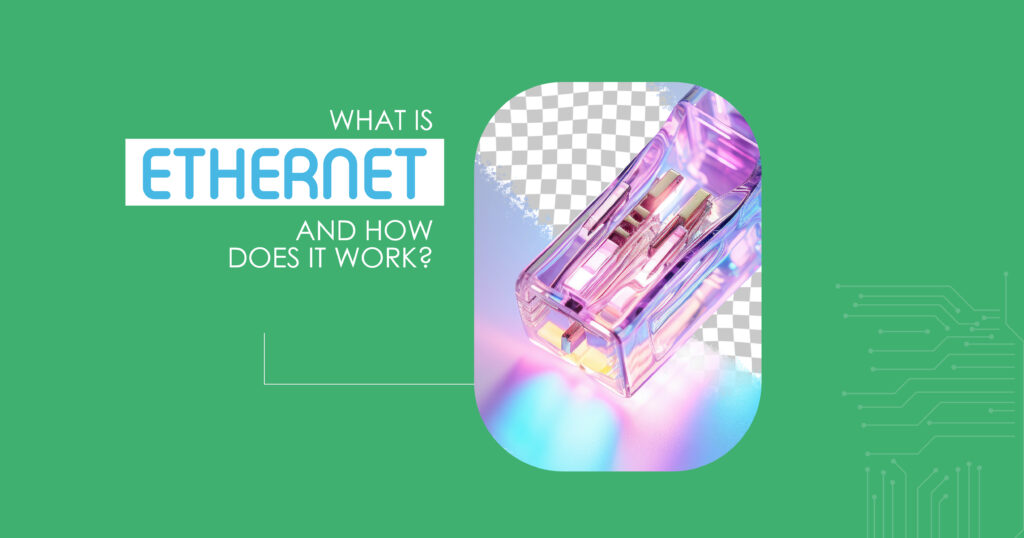
In a world increasingly reliant on fast and stable internet, many ask: what is Ethernet? Ethernet is a wired networking technology that connects devices like computers, routers, and switches, ensuring reliable data transfer for homes and businesses. Unlike wireless options, Ethernet delivers consistent speed and security, making it a backbone of modern networks.
This article dives into what Ethernet does, how it works, its history, and how it compares to alternatives like Wi-Fi, helping you understand its role in today’s digital landscape.
Defining Ethernet: The Basics
Ethernet is a set of networking protocols and technologies used to connect devices in a local area network (LAN). It enables devices to communicate by transmitting data packets over wired connections, typically through an Ethernet cable. Developed to standardize network communication, Ethernet ensures efficient and secure data transfer.
What is Ethernet used for? It’s commonly employed in homes, offices, and data centers to connect computers, gaming consoles, smart TVs, and other devices to the internet or each other, offering a dependable alternative to wireless networks.
What Is an Ethernet Cable?
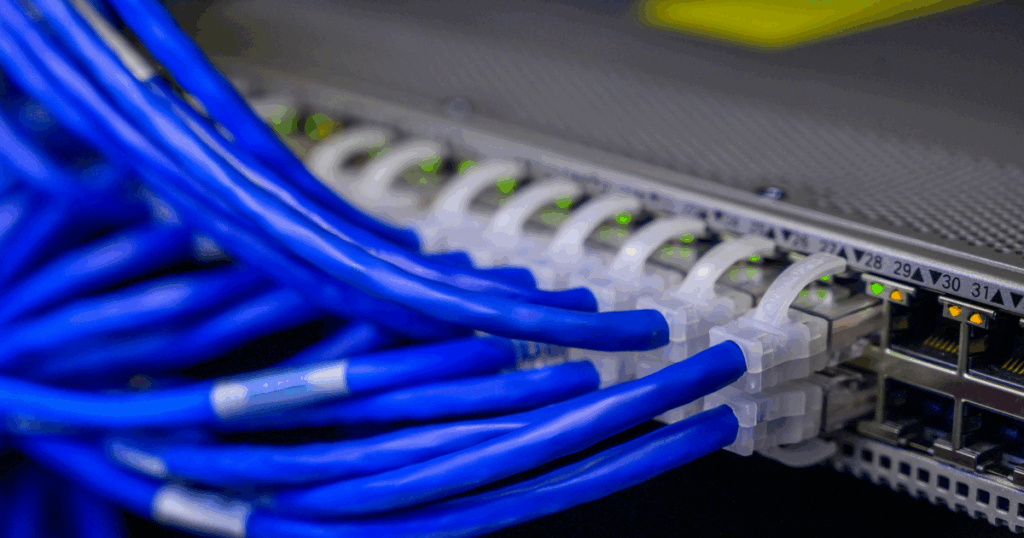
An Ethernet cable is a physical medium that carries data signals between devices in an Ethernet network. These cables, often referred to as twisted pair cables, come in various categories like Cat5 and Cat6, each supporting different speeds and performance levels. They connect devices to routers, switches, or modems, forming the backbone of an Ethernet connection.
Cables typically have RJ45 connectors, which plug into Ethernet ports on devices. Their durability and shielding reduce interference, ensuring stable connections.
How Ethernet Works
Understanding how Ethernet works involves grasping its use of protocols to manage data transmission. Ethernet divides data into packets, sending them across cables to the intended device. Each packet includes addressing information, ensuring accurate delivery within the network.
Ethernet operates using a system called CSMA/CD (Carrier Sense Multiple Access with Collision Detection) to manage data flow and avoid collisions when multiple devices transmit simultaneously. This process makes Ethernet connections reliable and efficient.
What Does Ethernet Do?
What does Ethernet do for users? It provides a stable, high-speed connection for tasks requiring consistent bandwidth, such as streaming, gaming, or large file transfers. Unlike Wi-Fi, Ethernet avoids interference from walls or other devices, making it ideal for critical applications.
- Key Benefits: Low latency, high reliability, and enhanced security.
- Common Uses: Office networks, home entertainment systems, and data centers.
- Advantages: Consistent performance even in high-traffic environments.
Ethernet vs Wi-Fi: A Comparison
When comparing Ethernet vs Wi-Fi, each has distinct strengths. Ethernet offers faster, more stable connections with lower latency, while Wi-Fi provides flexibility and mobility. The choice depends on your needs—Ethernet excels for fixed devices, while Wi-Fi suits portable ones.
| Feature | Ethernet | Wi-Fi |
| Speed | Up to 10 Gbps (Cat6a) | Up to 1-2 Gbps (Wi-Fi 6) |
| Stability | Highly Reliable | Susceptible to Interference |
| Mobility | Limited by Cable Length | High, Wireless Access |
| Setup Complexity | Requires Cables, Ports | Simple, No Physical Connection |
Ethernet is preferred for tasks demanding reliability, while Wi-Fi offers convenience.
Types of Ethernet Cables
Types of Ethernet cables vary by category, each designed for specific performance needs. Common types include Cat5, Cat5e, Cat6, and Cat6a, with differences in speed, bandwidth, and shielding.
- Cat5: Supports up to 100 Mbps, suitable for basic home networks.
- Cat5e: Enhanced, supports 1 Gbps, widely used for modern homes.
- Cat6: Handles 10 Gbps over short distances, ideal for high-speed needs.
- Cat6a: Supports 10 Gbps over longer distances with better shielding.
Choosing the right cable depends on your network’s speed and distance requirements.
Cat5 vs Cat6 Ethernet: Which Is Better?
The debate of Cat5 vs Cat6 Ethernet centers on performance and cost. Cat5, including Cat5e, is older and supports lower speeds, while Cat6 offers faster data transfer and better interference resistance, making it future-proof for high-bandwidth applications.
| Cable Type | Max Speed | Bandwidth | Best Use Case | Cost Range |
| Cat5 | 100 Mbps | 100 MHz | Basic Home Networks | Low |
| Cat5e | 1 Gbps | 100 MHz | Standard Home/Office Networks | Moderate |
| Cat6 | 10 Gbps | 250 MHz | Gaming, Streaming, Small Offices | Higher |
| Cat6a | 10 Gbps | 500 MHz | Data Centers, High-Speed LANs | High |
Cat6 is generally recommended for modern networks due to its speed and reliability.
Ethernet History and Development
Ethernet history and development began in the 1970s when Robert Metcalfe and his team at Xerox PARC created the first Ethernet standard. Initially supporting speeds of 2.94 Mbps, it evolved over decades to handle gigabit speeds. Key milestones include the introduction of twisted pair wiring in the 1980s and the standardization of Gigabit Ethernet in 1998.
Today, Ethernet supports speeds up to 400 Gbps in advanced settings, driven by innovations in cabling and protocols. Its adaptability has kept it relevant for over 50 years.
Setting Up an Ethernet Connection
Ethernet connection setup is straightforward but requires the right equipment. You’ll need an Ethernet cable, a router or switch with available ports, and a device with an Ethernet port. Here’s how to set it up:
- Plug one end of the Ethernet cable into your device’s Ethernet port.
- Connect the other end to a router, switch, or modem.
- Configure network settings if needed (most devices auto-detect).
- Test the connection to ensure stability and speed.
Proper setup ensures a reliable Ethernet connection experience.
Why Choose Ethernet for Your Network?
Ethernet’s reliability makes it a top choice for scenarios where speed and stability are critical. It’s less prone to interference than Wi-Fi, offering consistent performance for tasks like video conferencing or large data transfers. For businesses or gamers, Ethernet’s low latency and security are unmatched.
For more on network optimization, check out resources from the IEEE at https://www.ieee.org or Cisco’s networking guides at https://www.cisco.com.
Wired for Success: Connect With Coastal IT
Whether you’re setting up a home network or optimizing a business LAN, Ethernet can be a game-changer, and expert guidance ensures you get it right. Contact Coastal IT today for help with Ethernet setups, network troubleshooting, or tailored IT solutions. Their team is ready to boost your connectivity—reach out now to learn more.
FAQs
- Is Ethernet faster than Wi-Fi?
Yes, Ethernet is generally faster than Wi-Fi, offering speeds up to 10 Gbps with modern cables like Cat6, compared to Wi-Fi 6’s 1-2 Gbps. It also provides lower latency and more consistent performance, unaffected by physical barriers. This makes Ethernet ideal for high-bandwidth tasks like gaming or streaming.
- What type of Ethernet cable do I need?
The Ethernet cable you need depends on your network’s speed and distance requirements. Cat5e is sufficient for most home networks, supporting up to 1 Gbps, while Cat6 or Cat6a is better for high-speed applications like 10 Gbps networks. Check your router and device capabilities to choose the right cable.
- Can I use Ethernet and Wi-Fi at the same time?
Yes, many devices allow simultaneous Ethernet and Wi-Fi connections, often prioritizing Ethernet for faster, stable performance. This setup can enhance network reliability, with Ethernet handling high-bandwidth tasks and Wi-Fi as a backup. Ensure your device’s network settings are configured to avoid conflicts.
- Do I need Ethernet if I already have Wi-Fi?
Ethernet isn’t mandatory if Wi-Fi meets your needs, but it’s beneficial for tasks requiring stability, like online gaming or large file transfers. It avoids interference issues common with Wi-Fi, offering consistent speeds. Consider Ethernet for fixed devices or high-traffic environments.
- How do I connect my device to Ethernet?
To connect to Ethernet, plug one end of an Ethernet cable into your device’s Ethernet port and the other into a router, switch, or modem. Most devices automatically detect the connection, but you may need to adjust network settings. Test the connection to confirm it’s working properly.